Password Security
This topic explains how to create a strong password and how to protect your passwords from attacks.
Why is this important?
Passwords are the only thing standing between your personal data and someone who wants to steal it. If your passwords are weak or reused across multiple sites, you become wide open to data breaches and identity theft.
By using strong, unique passwords for each account, you significantly reduce the risk of unauthorized access and protect your personal information.
However, let's properly define in this module how do you actually make a secure password.
What are the threats to password security?
There are several threats to password security, including:
- Brute force attacks, where an attacker tries every possible combination of characters until they find the correct password.
- Dictionary attacks, where an attacker uses a list of common words and phrases to guess passwords.
- Phishing attacks, where an attacker tricks you into giving them your password through a fake website or email.
- Keylogging, where an attacker records your keystrokes to capture your password.
- Password reuse, where using the same password across multiple accounts increases the risk of compromise if one account is breached.
How do you actually create a strong password?
- Never use the same password for multiple accounts.
- Your password should be at least 12 characters long. Though even more is even better, so let your imagination run wild!
- Your password should include a mix of uppercase and lowercase letters, numbers, and special characters. The more diverse the better!
- Your password should not contain any personal information, such as your name, birthdate, or phone number. Don't let them know your next move!
- Your password should not be a common word or phrase that can be easily guessed. Can be a way to use that buzzword you saw in a book!
- Don't even try to use "password" and then put it as "Password123!", it's a terrible idea! A dictionary attack will find it in no time.
- Consider using a password manager to generate and store unique passwords for each account. This is not entirely required, but trust me, it makes your life so much easier!
Let something else remember your password!
There are many password managers available, both free and paid. Some popular options include LastPass, 1Password, and Dashlane. These tools can help you generate strong passwords, store them securely, and autofill them when needed.
What I do recommend for frictionless managing is Bitwarden. It's free and easy to use.
How to use Bitwarden
Step-by-step setup about 10 minutes
-
Access the Bitwarden website and make an account, and also put in your master password. This is the only password you will need to remember, so make it a good one!
Make it long. It's the only one you have to remember. - After you have accessed the site, congratulate yourself on taking a step towards better security! But seriously, here's how to get started:
-
Here's the Bitwarden dashboard. You can add your accounts and passwords here, and also generate strong passwords for new accounts. You can also use the browser extension to autofill your passwords when you log in to websites.
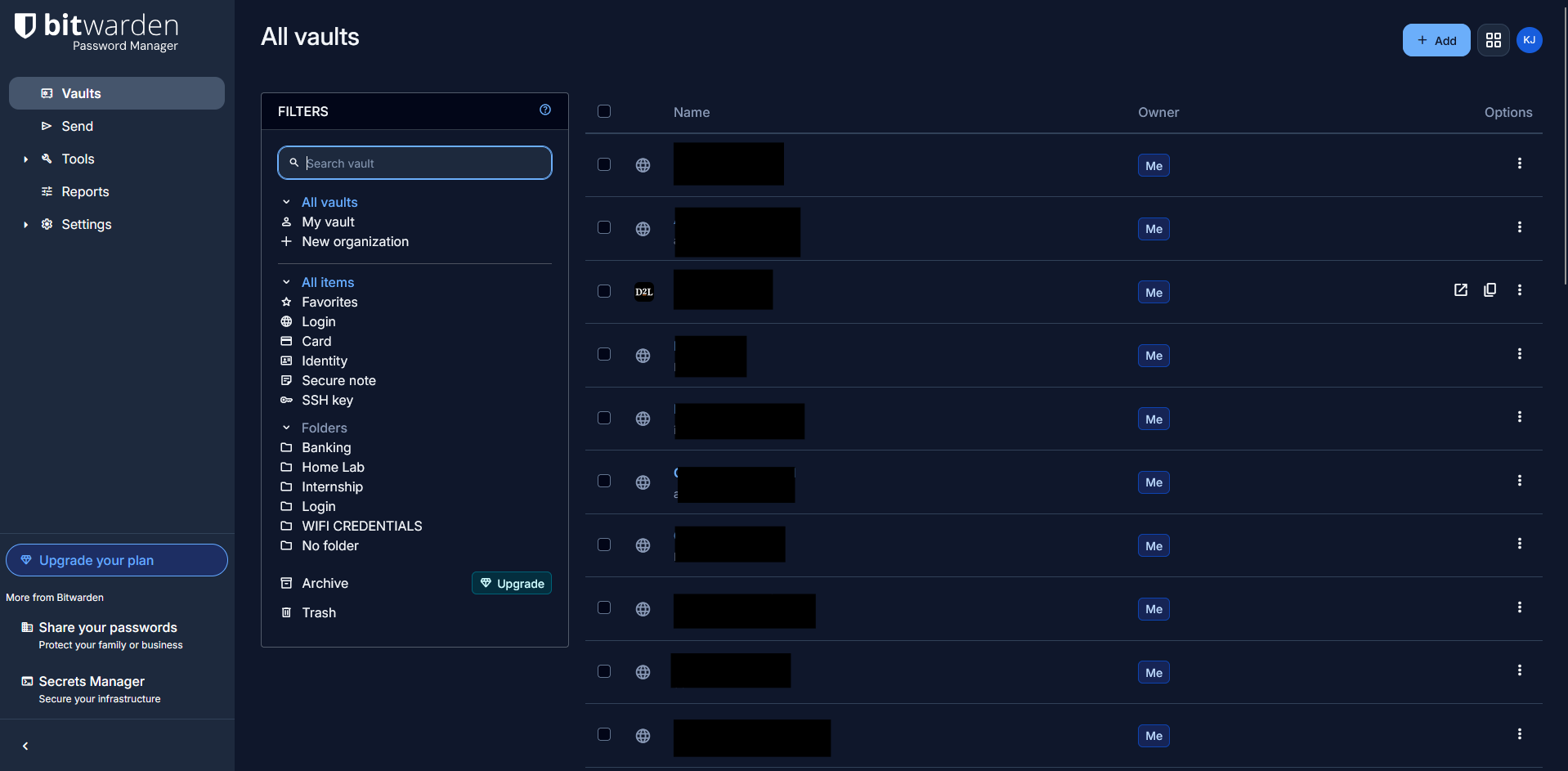
Bitwarden dashboard. This is where you can manage your passwords and other sensitive information. You can also generate strong passwords and store them securely. -
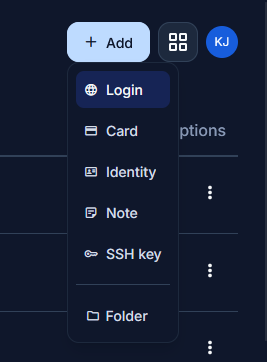
Okay now go to the upper right corner and click on the add button. This is where you can add your accounts and passwords to Bitwarden. Select Login for email/account logins.
-
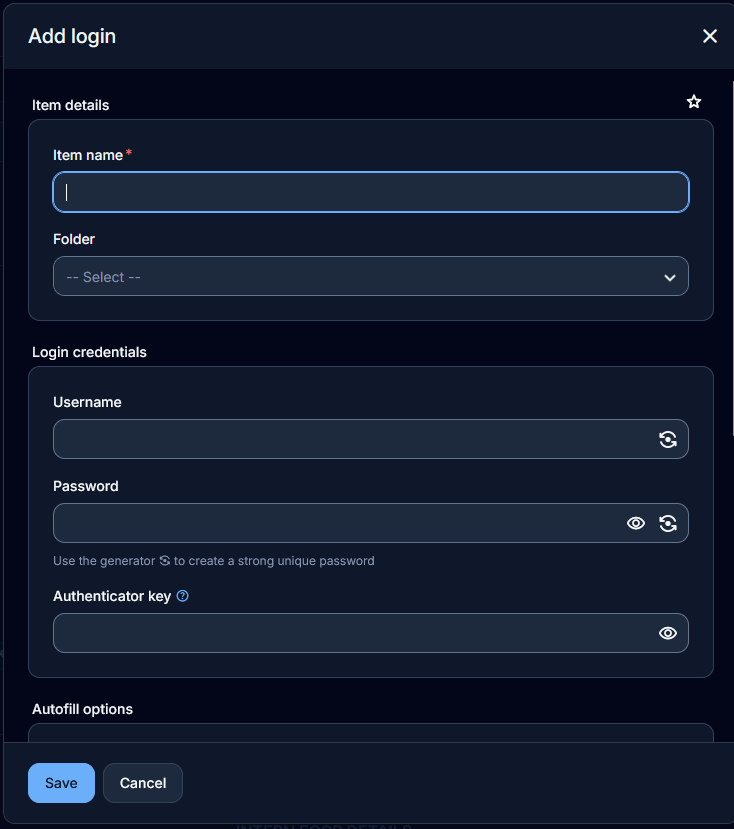
Now you can add your own account information, of course put a name for the account, and then put in your username and password. You can also generate a strong password by clicking on the generator icon. This will generate a random password for you, which you can use for your account. Make sure to save it!
-
Now you can see your saved password in the Bitwarden dashboard. You can also use the browser extension to autofill your passwords when you log in to websites. This is a great way to save time and also keep your passwords secure. But plain copy paste is fine.

You're done when autofill works on your phone.
Passkeys
Passkeys are a new way to log in to websites and apps without using a password. They use public key cryptography to authenticate you, which is more secure than passwords. Passkeys are supported by most major platforms, including Apple, Google, and Microsoft.
They work in a kinda similar way to MFA, but with a focus on eliminating the need for passwords entirely.
You can access or make passkeys in a similar way to how you set up your Password Manager, however it's dependent on your device and the platform you're using. For this instance, Apple Passwords have the passkey feature built-in.
Technicality aside, passkeys are just a way to use your phone's biometrics system such as Face ID or Fingerprint scanners to authenticate you in a login. Can also be your phone's PIN.
Don't want to install anything?
That's fine, you can still make strong passwords without a password manager. Just make sure to follow the tips above, and don't reuse passwords across multiple accounts.
Here are also some tips for easily managing your passwords:
- Let your in-device password manager do the work for you, in some logins, Apple Passwords or Google Password Manager sometimes prompts to save the password for you, you can just press accept and it automatically saves it.
- Use a passphrase instead of a password. A passphrase is a sequence of words that are easy to remember but hard to guess. For example, "Mango-Radio-Blue-47" is a strong passphrase.
- Write your passwords down and keep them in a safe place. This is not the most secure method, but it's better than using weak passwords or reusing passwords across multiple accounts.
See how your password holds up!
Try the Password Strength Checker →