Safe Browsing
The internet is the one-stop shop for everything you need, information, entertainment, ecommerce. However, the internet also comes with nasty things, that's also where you get all the threats and risks that you learned here.
Most importantly, knowing best safe browsing practices protects your personal data, prevents identity theft, and also not get those nasty malwares we've been talking about.
Why it matters?
Most cyberattacks don't specifically target your device anyway, they're designed so you're the one walking into them. A fake site, a fake download button, website persuading you that you have "viruses" on your phone, it all happens in your browser.
What to look out for
- Always check the URL of the site you're entering, this is critical in social media or banking apps. Make sure it's
Facebook.com, notFaceb00k.com - Avoid downloading any files from sketchy websites, these might have malware hidden in it. Could also be true to emails seen here in this module.
- Be cautious of any website that asks for personal information or login credentials. If in doubt, contact the organization directly to verify the legitimacy of the request.
- If you go to a website and a pop-up shows that you have a virus on your phone?
- A branded bag that is advertised for 80% off in an ecommerce website you've never heard of, yeah right!
- Watch out for people peeking out from behind you when you're browsing the internet.
How to browse the internet safely?
- Use a reputable web browser and keep it updated with the latest security patches. Recommended browsers include Chrome, Firefox, Safari on Apple devices, and Brave.
- Use a VPN (Virtual Private Network) if possible to encrypt your internet traffic and protect your privacy.
- Regularly clear your browser cache and cookies to remove any potentially harmful data.
- Only download software from trusted sources and avoid downloading from unknown or untrusted websites.
- On shared or public computers, always log out of your accounts and clear the browser data after use.
- Reject all cookies in a website if you don't need to save data like login credentials or sessions. You don't need cookies if all you need in a site is looking for a cookie recipe.
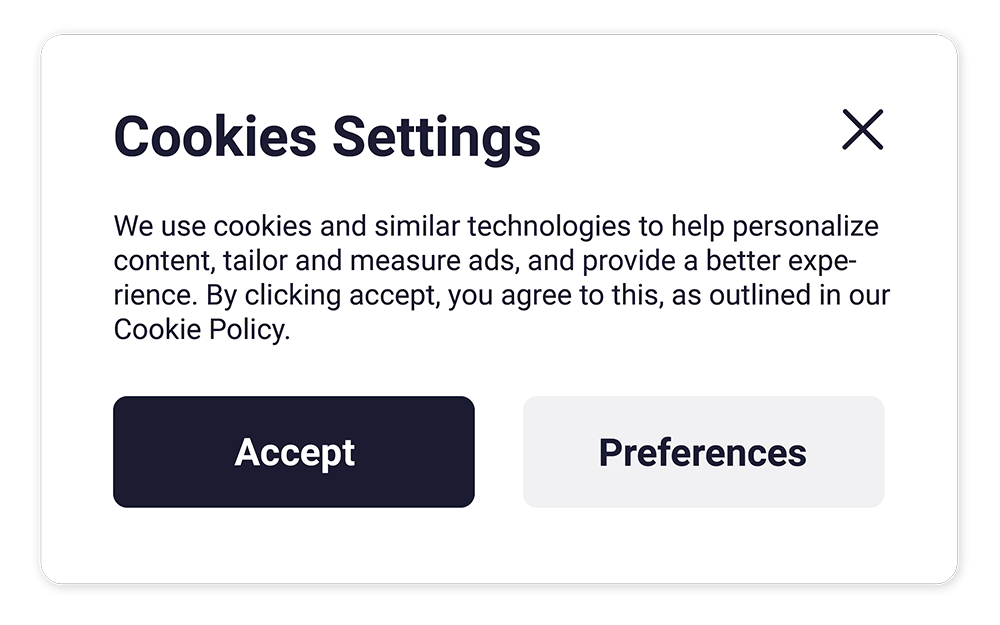
Example of a website with cookie consent - Ignore and close the tab or window if you encounter a pop-up that claims you have a virus on your phone. If you didn't download anything sketchy, then you don't have a virus.
What if something goes wrong?
- Clicked a sketchy link? Close the tab, and don't type anything.
- Downloaded a file you're not sure about? Don't open it yet. You can check it on VirusTotal, but only upload files that aren't private. Never upload work documents or anything with personal info, since uploaded files can be seen by others. If any security vendors flag it, delete it. For work files, ask IT instead..
- Typed your card details? Call your bank immediately and block the card.
- Typed your password? Change it immediately and notify the relevant service. For more information you can go to this page, or this page.